You saw a warning saying your computer was infected.
Maybe it claimed to be from Microsoft. Maybe alarms started sounding, your browser appeared to lock up, or a message told you not to shut down your computer. Then came the phone number and an urgent warning to call immediately.
In our previous article about how to spot the latest Microsoft support scams, we looked at the warning signs that can help you recognize these scams before you fall for them.
But what if you already clicked something, called the number, downloaded software, or let the person on the phone connect to your computer?
Closing the warning may not be the end of the problem.
Here’s what you should look for afterward — and why what happened after the fake warning matters just as much as the warning itself.
First: How Far Did the Scam Get?
Not every encounter with a fake Microsoft warning results in a compromised computer.
If a fake warning appeared in your browser and you simply closed the page without downloading anything, calling anyone, entering information, or granting remote access, your risk is considerably different from someone who allowed a stranger to control the computer.
The situation becomes much more serious if you:
- Called the phone number in the warning
- Downloaded a program at the caller’s direction
- Gave someone remote access to your computer
- Entered an administrator password
- Gave them an email address or account password
- Logged into banking, email, or other accounts while they were connected
- Provided credit or debit card information
- Paid the supposed technician
If any of those happened, you should assume the scammer may have had an opportunity to make changes you couldn’t see.
Look for Remote-Access Software You Don’t Recognize
One of the first things many support scammers want is remote control of your computer.
They may convince you that they need access to diagnose a virus, repair Windows, renew a security subscription, or stop hackers who are supposedly already inside your system.
Once connected, however, they can potentially see what you’re doing, access files, change settings, install programs, or attempt to collect information.
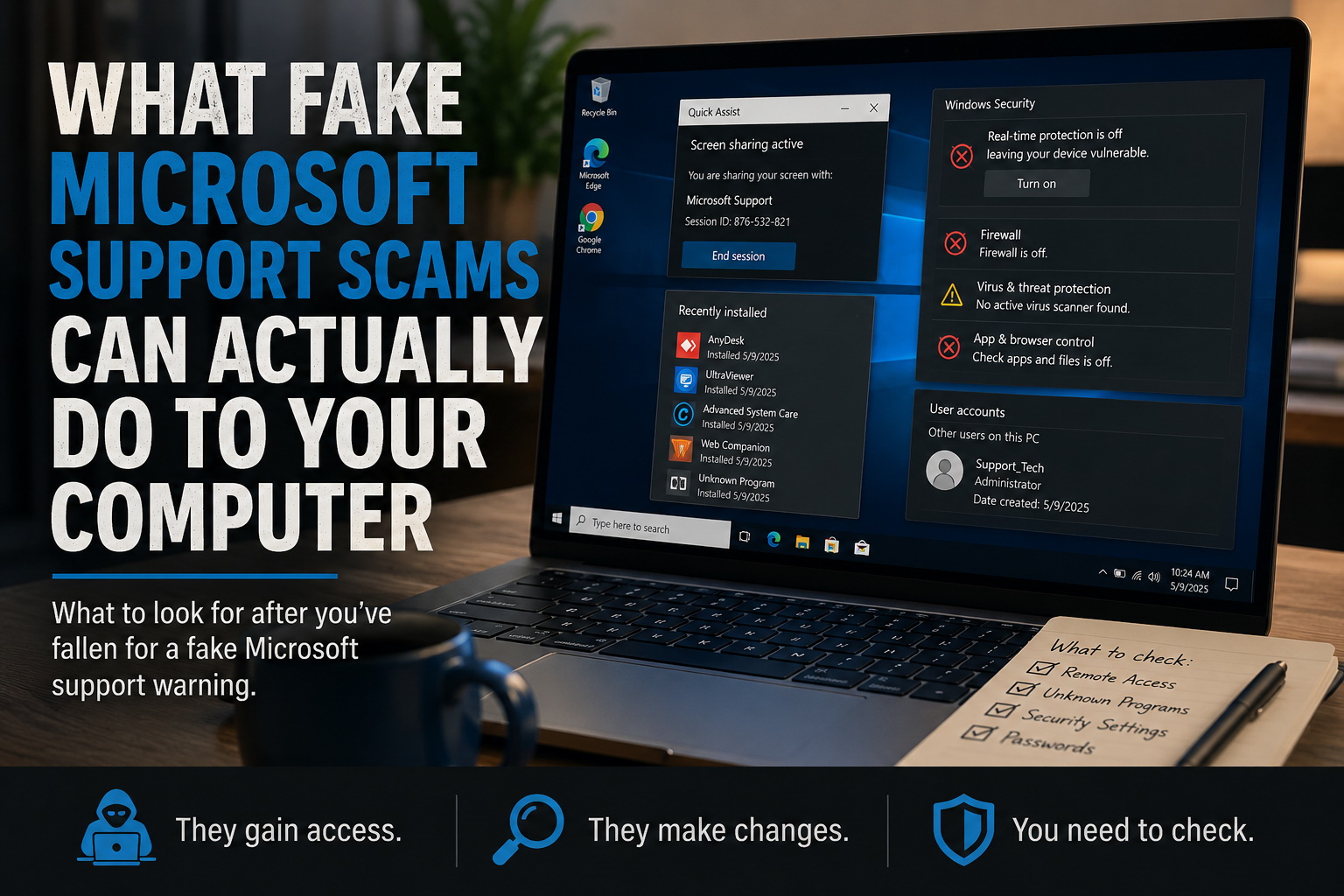
Afterward, look through your installed applications for remote-access programs you don’t remember installing.
But don’t assume that simply uninstalling the remote-access application solves everything.
If someone you don’t know has already controlled the computer, the more important question is:
What did they do while they had access?
That is where a proper virus and malware removal service can become important.
Check for Programs That Were Installed During the Session
Remote-access software may not be the only thing installed.
A scammer with sufficient access could potentially install additional software, browser extensions, startup programs, or other tools.
Pay attention to:
- Programs with unfamiliar names
- Applications installed on the date the scam occurred
- New browser extensions
- Programs suddenly launching when Windows starts
- Security programs you don’t remember installing
- Changes to your default browser or search engine
The absence of an obvious suspicious program doesn’t necessarily prove that nothing was changed.
Some unwanted software is designed specifically not to attract attention.
Check Whether Windows Security Was Changed
A scammer doesn’t necessarily need to install something obvious to weaken a computer.
Check whether your antivirus protection is still active and whether Windows Security reports anything unusual.
Pay particular attention if:
- Real-time protection has been disabled
- Firewall settings have changed
- Security exclusions you don’t recognize have appeared
- Windows suddenly reports that another security product is controlling protection
- Security warnings have stopped appearing altogether
Disabling security protection can make it easier for additional malicious software to operate without being detected.
If you’re unsure what was changed, a professional computer security inspection can help determine whether the system was altered.
Look for New or Unfamiliar User Accounts
This is one people often overlook.
If someone had administrative control of the computer, check the Windows user accounts.
You shouldn’t suddenly have an administrator, support, technician, or other account that you don’t recognize.
An unfamiliar account could provide another way to access the system later.
Don’t automatically delete things if you aren’t sure what they are, though. Windows itself creates and uses certain system accounts, and deleting the wrong account or service can create additional problems.
Your Passwords May Be More Important Than the Computer
If a scammer could see your screen or control the computer, think carefully about what information was accessible during that session.
Did you log into Gmail?
Facebook?
Your bank?
A shopping account?
A password manager?
Were passwords saved in your browser?
If you believe the computer may still be compromised, don’t sit at that same computer and start changing every password.
Use another device you trust — such as your phone or another computer — to secure critical accounts first.
Start with your email account because access to email can often be used to reset passwords for other services.
Then address banking and financial accounts, followed by other important accounts.
Enable multi-factor authentication wherever possible.
Watch Your Email and Financial Accounts
Computer cleanup is only one part of recovering from a support scam.
If you supplied payment information or accessed financial accounts while the scammer was connected, watch those accounts closely.
Look for:
- Password-reset messages you didn’t request
- New login alerts
- Changes to recovery email addresses or phone numbers
- Purchases you don’t recognize
- New payment recipients
- Unexpected security notifications
Contact your bank or card issuer promptly if financial information may have been exposed.
Don’t Assume “Everything Looks Normal” Means Everything Is Fine
This is one of the most dangerous assumptions after a remote-access scam.
The computer may boot normally.
The internet may work.
Your files may still be there.
There may be no pop-ups at all.
That doesn’t tell you what happened while someone else controlled the machine.
The real question isn’t simply whether the computer works.
It’s whether you can still trust the computer.
What Should You Do If You Let a Fake Technician Into Your Computer?
Disconnecting the remote session was the right first move, but the next steps depend on exactly what happened.
A computer that merely displayed a fake warning is a very different situation from one where an unknown person had administrative access for 30 minutes.
If you’re in Palm Harbor or the surrounding Pinellas County area and you’re not sure whether your computer is safe after a support scam, Sick Computer Doctor computer repair in Palm Harbor can inspect the system, look for unwanted software and configuration changes, and help determine the appropriate recovery steps.
The sooner you know what was changed, the sooner you can decide whether the computer can be cleaned safely or whether stronger recovery measures are necessary.
Already Fell for the Warning? Don’t Ignore What Happened Next.
Fake Microsoft support scams work because they create urgency.
Once the warning disappears, that urgency disappears too — and that’s exactly when people may assume the danger is over.
If someone accessed your computer, installed software, obtained passwords, or received financial information, the warning disappearing doesn’t undo what already happened.
If you’re concerned about a computer after a support scam, contact Sick Computer Doctor for help determining what needs to be checked.
Leave a Reply