When most people take a computer for repair, they assume the solution is straightforward. A computer is running slow, displaying errors, infected with malware, or refusing to start, so it must just need a quick fix.
In reality, professional computer repair services involve a structured process designed to identify the true cause of the problem before any work begins. Proper diagnosis helps prevent unnecessary repairs, repeat failures, and wasted money.
Whether you’re dealing with performance issues, hardware failures, software corruption, or security concerns, understanding the repair process can help you make informed decisions about your computer.
Step 1: Initial Assessment and Symptom Verification
This step is critical — it determines everything that follows. Every repair starts with gathering information and verifying the symptoms being reported.
Some of the questions we ask include:
- When did the problem begin?
- Was there inclement weather around the time?
- Has any new hardware or software been installed recently?
- Is the issue consistent or intermittent?
- Can the problem be reproduced?
- Does the issue appear hardware-related or software-related?
- Is the computer slow, crashing, displaying errors, or refusing to power on?
Customers can assume they need virus and malware removal, only to discover the real issue is failing hardware, overheating, software corruption, or operating system damage.
The purpose of the intake process is to verify symptoms before repairs begin. The initial assessment determines the direction of the entire repair process and helps prevent unnecessary repairs.This also helps eliminate guesswork and ensures we focus on the actual cause of the problem rather than simply treating symptoms.
For example, a customer brings their computer in complaining of pop-ups. Many shops will spend 15 minutes installing pop up blockers, security add-ins, or disabling extensions, then charge the customer a service charge and send the customer on their way. To the customer, it would appear the problem has been fixed. It’s not. It’s masked. The pop-ups are still happening in the background, and consuming system resources.
Step 2: Diagnostic Testing
Once symptoms are confirmed, we determine the appropriate level of diagnostic testing.
Not every computer requires the same process. A simple software issue may require minimal testing, while a system that won’t boot may require extensive diagnostics.
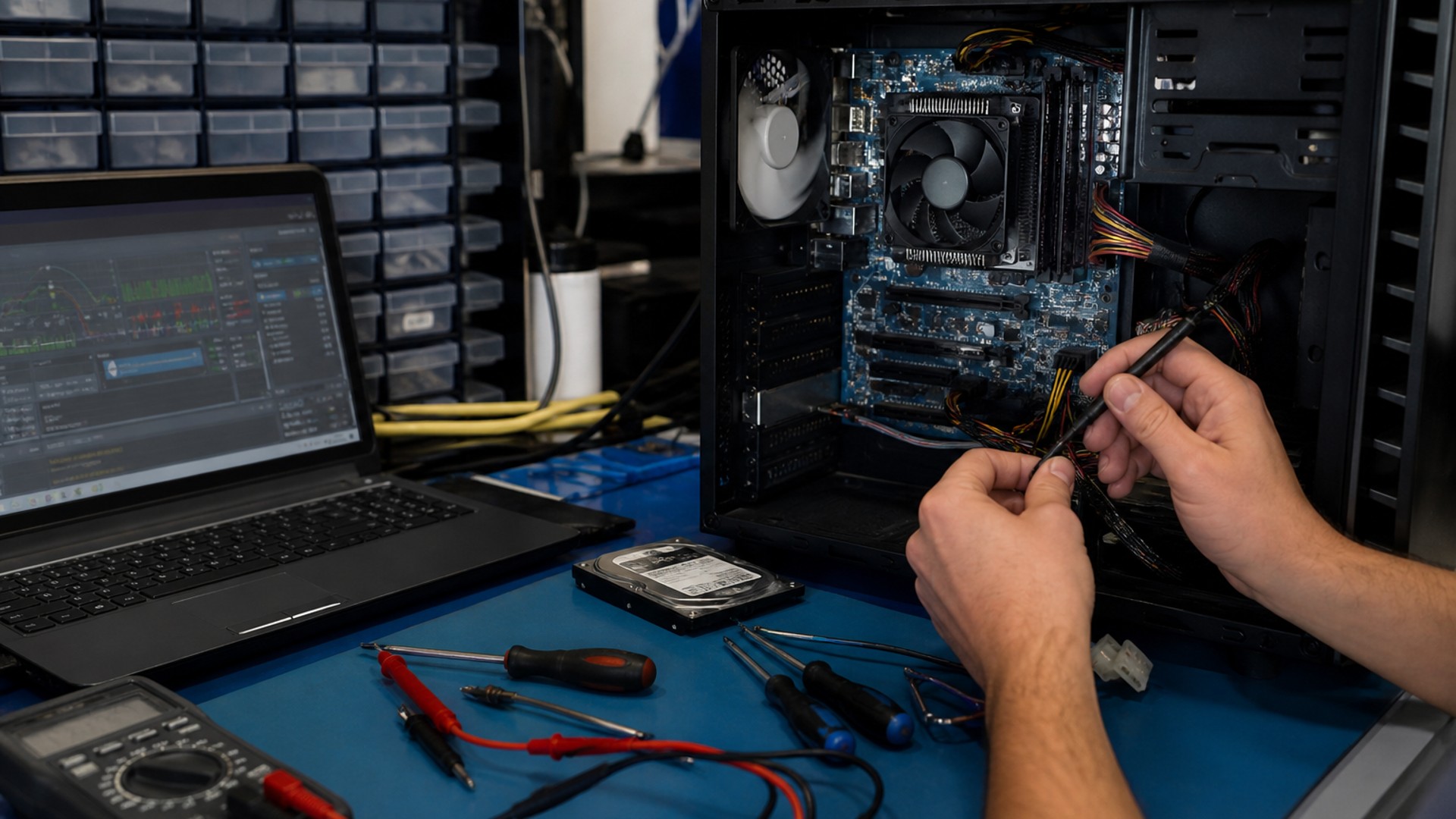
Testing may include:
- Visual inspections
- Drive checks
- Memory testing
- Power rail verification
- Thermal analysis
- Operating System evaluation
- Behavior analysis
Many of these evaluations overlap with the proactive security practices used during our cybersecurity services, helping identify threats and vulnerabilities before they cause significant damage.
The purpose of diagnostics is simple — identify the root cause before making repairs.
For simple issues like Operating System Reloads or Loads, the focus is on getting your system clean, optimized, updated, and running properly.
We don’t install software on failing or unstable hardware. If something doesn’t look right, we address it before moving forward.
We don’t guess – we evaluate first, then repair based on what the system actually needs.
If all you need is a clean reinstall, we’ll do exactly that. If something doesn’t look right, we’ll let you know before it becomes a bigger problem.
Step 3: Matching the Repair to the Problem
Once diagnostics are complete, the repair strategy is selected based on the actual condition of the system. Every repair falls into one of three general categories:
🟢 Basic OS wipe and reload:
- Hardware verification
- OS install/reinstall (Windows, macOS, Linux)
- Updates
- Data sandboxed
- Optimization and Tweaks
There is often no need for deep diagnostics unless something is off.
🟡 Performance Issues (Slow / Freezing)
When systems show signs of slowdown or instability, we move into slow computer repair strategies:
- Targeted diagnostics
- Drive + memory testing
- Malware detection & elimination
🔴 Serious Issues (No boot / instability / unknown cause)
For systems that won’t power on or show major instability:
- Full diagnostics
- Hardware testing
- Root cause analysis
This is where experience matters. Identifying the true failure point prevents wasted time and unnecessary repairs.
Why This Process Matters
Skipping steps leads to repeat problems.
A proper computer repair isn’t about applying a quick fix—it’s about solving the actual issue so it doesn’t come back.
What should you do?
If your computer isn’t performing the way it should, don’t wait for it to get worse.
Get it checked, get it fixed properly, and avoid bigger problems down the line.
Customers throughout Palm Harbor, Dunedin, Clearwater, and the surrounding Northern Pinellas County area trust SickComputerDoctor.com for professional computer repair and diagnostic services.
Leave a Reply