
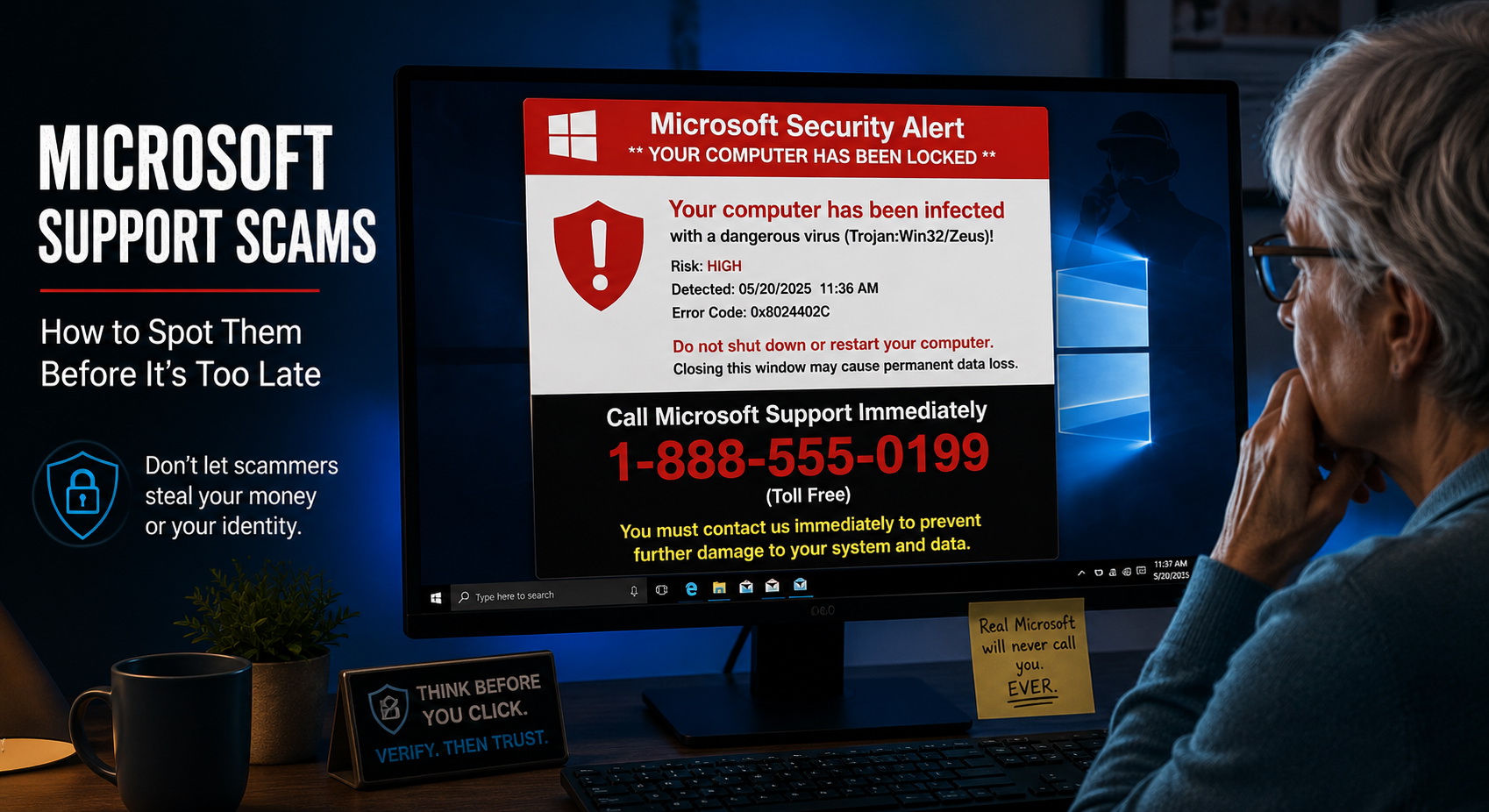
The Latest Microsoft Support Scams: How to Spot Them Before It’s Too Late
One of the most troubling calls I receive does not begin with a computer that has crashed. It begins with someone saying, “I think I let a scammer into my computer.”
Sometimes the person received a phone call from someone claiming to work for Microsoft. Other times, a warning suddenly filled the computer screen, sounded an alarm, and instructed the user to call “Microsoft Support” immediately.
These scams are designed to create panic. The message may claim that your computer is infected, your bank account is at risk, or your personal information is already being stolen. It may even warn you not to turn off the computer because doing so will supposedly cause permanent damage.
The warning may look official, but Microsoft support scams rely on fear and deception—not a legitimate diagnosis of your computer.
When you are uncertain whether a warning is real, contacting a trusted provider of computer repair in Palm Harbor can help you determine what is actually happening before you give a stranger access to your system.
How Microsoft Support Scams Usually Begin
Most Microsoft support scams do not begin with someone successfully hacking into your computer. They begin by convincing you that a serious problem already exists.
The scam may start with:
- A browser pop-up claiming Windows has been locked
- A telephone call from someone pretending to represent Microsoft
- An email warning that your Microsoft account was compromised
- A fake Microsoft 365 subscription-renewal invoice
- A false Windows Defender security alert
- A search result leading to a counterfeit support website
- A message telling you to call a toll-free support number
The scammer’s first goal is to get your attention. The second is to make you afraid. The third is to persuade you to call, click, pay, or provide remote access.
Once scammers gain remote control of the computer, they may pretend to find infections, display harmless system logs as evidence of hacking, install unwanted programs, steal saved passwords, or demand hundreds of dollars for repairs you never needed.
Some victims eventually require professional virus and malware removal because the scammer installed additional software during the remote session.
The Fake Microsoft Security Pop-Up
The fake security pop-up is one of the most convincing forms of the Microsoft support scam.
You may be browsing an ordinary website when a warning suddenly takes over the screen. It might display the Microsoft name, a Windows logo, an error code, or a message such as:
Your computer has been infected.
Windows has detected suspicious activity.
Do not shut down your computer.
Call Microsoft Support immediately.
The page may flash, sound an alarm, repeat a robotic warning, or prevent you from closing the browser normally. Some versions place the browser into full-screen mode so that the warning appears to control the entire computer.
That does not necessarily mean Windows has been locked.
In many cases, you are looking at a malicious or deceptive webpage—not a genuine Windows security message. The browser may be trapped on that page, but the operating system itself may still be functioning normally.
Do not call the number displayed in the warning. That number connects you to the scammer, not Microsoft.
A legitimate cybersecurity service can help distinguish between a deceptive browser page and an actual computer compromise.
Why the Pop-Up Can Be Difficult to Close
Fake security pages often use browser features and scripts designed to interfere with normal navigation.
They may:
- Reopen a dialog box after you close it
- Prevent the Back button from working normally
- Automatically switch to full-screen mode
- Play repeating audio
- Display multiple overlapping warnings
- Reload when you attempt to leave
- Hide the normal browser menus
This behavior is intentional. The scammer wants you to believe the warning is coming from Windows itself.
If the browser will not close normally, you may need to force it to close using Task Manager. After reopening the browser, avoid restoring the previous session because doing so may reopen the same deceptive page.
However, force-closing the browser only removes the visible warning. It does not establish whether anything was downloaded or installed before the page appeared.
If unusual behavior continues after the browser is closed, a complete computer repair evaluation may be appropriate.
The Fake Microsoft Phone Call
Another common version begins with an unexpected telephone call.
The caller may claim to represent:
- Microsoft
- Windows Support
- Microsoft Security
- Windows Defender
- A Microsoft-certified technician
- Your internet provider
- Your bank’s fraud department
The caller might say Microsoft detected viruses, hackers, expired security software, or suspicious activity originating from your computer.
The person may already know your name, telephone number, email address, or city. That information can make the call sound legitimate, but basic personal information is frequently available through data breaches, public records, marketing databases, and people-search websites.
Microsoft does not routinely monitor individual home computers and call their owners to report infections.
A caller who unexpectedly claims to have detected a problem on your personal computer should not be given access to it.
How Scammers “Prove” Your Computer Is Infected
Once a scammer persuades you to remain on the telephone, the person may walk you through several Windows screens.
One common tactic is to open Event Viewer. Every Windows computer records warnings and errors in Event Viewer during normal operation. The scammer points to these routine entries and claims they are evidence of viruses or hackers.
Another tactic is to open Command Prompt and run commands that produce technical-looking information. The scammer may falsely describe ordinary network connections, system files, or service listings as proof that the computer is compromised.
They may also show you:
- Stopped Windows services
- Temporary files
- Normal system errors
- A list of active network connections
- An expired certificate from an unrelated program
- Harmless warning icons
- A fabricated security scan
These demonstrations are meant to overwhelm you with technical information. They are not a legitimate diagnosis.
A real technician performs structured computer troubleshooting and explains what the evidence actually means before recommending a repair.
The Remote-Access Trap
The scammer will often ask you to install remote-access software or open a built-in Windows support tool.
The software itself may be legitimate. Remote-support programs are commonly used by real technicians. The danger comes from giving access to an unknown person who contacted you unexpectedly.
The scammer may ask you to install or open:
- AnyDesk
- TeamViewer
- UltraViewer
- Zoho Assist
- LogMeIn
- ScreenConnect
- Supremo
- Microsoft Quick Assist
- Another remote-desktop application
Once connected, the scammer may be able to see your screen, control the mouse and keyboard, download files, install programs, or attempt to access saved information.
Never provide a remote-access code to an unsolicited caller.
Legitimate remote computer support should begin only after you deliberately contact a technician or business you trust and verify who will be connecting.
The Fake Microsoft Email
Microsoft impersonation scams also arrive through email.
The message may claim:
- Your Microsoft account was compromised
- Someone signed in from another country
- Your Microsoft 365 subscription is expiring
- Your account will be suspended
- You purchased software you do not recognize
- Your cloud storage is full
- Your payment method failed
- You owe money for a security subscription
Some scam emails are poorly written, but others look professional. They may include Microsoft logos, realistic formatting, copyright notices, and buttons that appear to lead to Microsoft.
Do not judge an email only by its appearance.
Examine the sender’s complete email address. Hover over links before clicking them. Be suspicious of unexpected attachments, invoices, password-reset requests, and messages that demand immediate action.
Rather than clicking a link in the email, open a new browser window and navigate to the company’s official website yourself.
Good cybersecurity protection for small businesses also includes teaching employees how to recognize these impersonation attempts before credentials or company data are exposed.
Fake Subscription-Renewal Invoices
Another variation claims that a Microsoft, Windows Defender, antivirus, or technical-support subscription has renewed automatically.
The email may show a charge of several hundred dollars and provide a telephone number to call if you want to cancel.
The charge may be completely fabricated.
When you call, the scammer may ask you to install remote-access software so the company can process the supposed refund. Once connected, the scammer may manipulate the screen to make it appear that too much money was refunded.
The victim is then pressured to return the nonexistent overpayment using gift cards, cryptocurrency, cash, or a wire transfer.
Do not call the number printed on an unexpected invoice. Check your actual bank or credit-card account independently. Contact the company using a telephone number obtained from its verified website—not from the suspicious message.
Seven Warning Signs of a Microsoft Support Scam
1. The message creates panic
Scammers want you to react before you have time to think.
They may claim that your files are being stolen, your computer is spreading viruses, or your bank account is in immediate danger. A legitimate warning may advise you to take action, but it will not usually pressure you to call an unknown telephone number immediately.
2. Someone contacts you unexpectedly
Be suspicious when someone calls, emails, or messages you without being asked and claims to have detected a problem on your computer.
Legitimate support normally begins when you contact the support provider.
3. They demand remote access
An unsolicited request to install remote-control software is a major warning sign.
Do not allow access simply because the caller sounds knowledgeable or claims to represent a familiar company.
4. They request unusual payment methods
Gift cards, cryptocurrency, wire transfers, cash shipments, and payment apps are commonly used because those transactions can be difficult to reverse.
Legitimate support normally begins when you contact the support provider.
5. They tell you not to disconnect
Scammers often tell victims not to turn off the computer, end the telephone call, speak with family members, or contact their bank.
They are attempting to isolate you from anyone who might recognize the scam.
6. They use ordinary system information as proof
Windows errors, stopped services, and Event Viewer warnings do not automatically prove that a computer is infected.
A trustworthy technician will explain the evidence instead of using technical screens to frighten you.
7. They guarantee a solution before diagnosing the problem
Real computer repair begins with diagnosis.
Someone who claims to know exactly what is wrong before examining the computer may be following a script rather than performing a genuine technical assessment.
What Microsoft Actually Does—and Does Not Do
Microsoft provides legitimate customer support, security alerts, and account notifications. However, legitimate Microsoft support does not operate the way scammers claim.
Microsoft does not normally:
- Cold-call individuals to report viruses
- Place a telephone number inside a browser alarm demanding an immediate call
- Ask for gift cards or cryptocurrency
- Demand access to online banking
- Tell you to conceal the conversation from family or financial institutions
- Threaten to disable your computer unless you pay immediately
- Refund money by remotely controlling your bank account
You may receive a legitimate Microsoft account-security notification when there is a suspicious sign-in or password change. The safest response is to access your Microsoft account directly instead of clicking links in an unexpected message.
What to Do When a Fake Warning Appears
If a suspicious Microsoft warning suddenly appears:
- Do not call the number on the screen.
- Do not click buttons inside the warning.
- Do not provide personal or financial information.
- Do not install remote-access software.
- Attempt to close the browser.
- Use Task Manager if the browser cannot be closed normally.
- Reopen the browser without restoring the suspicious session.
- Check the computer for unwanted downloads or programs.
- Change passwords if you entered them into the suspicious page.
- Contact a trusted technician if you remain uncertain.
When the computer behaves abnormally after the warning is closed, professional malware removal in Palm Harbor can help identify browser hijackers, unwanted extensions, remote-access programs, and other potentially harmful changes.
What to Do If You Already Gave the Scammer Access
Do not assume everything is safe simply because the remote session ended.
Take these steps as quickly as possible:
Disconnect the computer from the internet
Turn off Wi-Fi or disconnect the Ethernet cable. This may interrupt an active remote connection and prevent additional information from leaving the computer.
Use a different device to change passwords
Change passwords for:
- Your primary email account
- Microsoft
- Banking and credit-card accounts
- Shopping accounts
- Social media
- Cloud-storage services
- Any account whose password was typed while the scammer could see the screen
Use unique passwords and enable multifactor authentication wherever possible.
Contact your financial institutions
Tell the bank or credit-card company what happened. Ask whether accounts, cards, or online-banking credentials should be changed.
Do not continue using the affected computer for sensitive activity
Avoid banking, shopping, email, and password changes on the affected computer until it has been checked.
Preserve useful information
Save the scammer’s telephone number, email address, payment receipts, remote-access program name, and any screenshots you may have.
Have the computer professionally inspected
Scammers sometimes leave behind remote-access tools, browser extensions, password stealers, scheduled tasks, or additional user accounts.
A complete computer security inspection can help determine what was installed and whether the system can be cleaned safely.
Uninstalling the Remote Program May Not Be Enough
Many people believe the danger is over once TeamViewer, AnyDesk, or another remote-access application has been removed.
That is an important step, but it may not be the only step required.
During the remote session, the scammer may have:
- Installed another remote-access program
- Added a browser extension
- Created a new Windows user account
- Changed startup settings
- Disabled security tools
- Downloaded password-stealing malware
- Copied documents
- Viewed saved browser passwords
- Accessed email or financial accounts
- Established a method to reconnect later
This is why a careful evaluation matters. The visible program may only be one part of what occurred.
How Sick Computer Doctor Can Help
If you encountered a fake Microsoft warning or allowed someone to access your computer, Sick Computer Doctor can help determine what actually happened.
The process may include:
- Identifying remote-access programs
- Checking installed applications
- Reviewing browser extensions
- Scanning for malware and potentially unwanted programs
- Examining startup entries and scheduled tasks
- Checking Windows user accounts
- Reviewing suspicious system changes
- Removing scam-related software
- Helping you understand which passwords should be changed
- Recommending steps to protect the computer going forward
Sometimes the warning turns out to have been nothing more than a deceptive webpage. In other cases, the scammer made significant changes after gaining remote access.
The purpose of a professional inspection is to replace uncertainty with evidence.
Sick Computer Doctor provides computer repair and cybersecurity services in Palm Harbor and throughout nearby northern Pinellas County communities.
How to Protect Yourself in the Future
You do not need to become a cybersecurity expert to avoid most Microsoft support scams.
Remember these basic rules:
- Microsoft does not call unexpectedly to report viruses on your personal computer.
- Do not call telephone numbers displayed in alarming browser pop-ups.
- Do not provide remote access to unsolicited callers.
- Do not pay technical-support charges using gift cards or cryptocurrency.
- Do not allow anyone to remotely access your bank account.
- Verify suspicious messages through independently obtained contact information.
- Ask a trusted technician before taking action when something does not feel right.
- Keep Windows, browsers, and security software updated.
- Use unique passwords and multifactor authentication.
- Back up important files regularly.
Preventive computer maintenance and security assistance can also reduce the risk created by outdated software, unwanted browser extensions, and poorly configured systems.
Final Thoughts
Microsoft support scams succeed because they create fear and make the victim believe immediate action is necessary.
The criminals behind them may use professional-looking logos, convincing scripts, technical language, and legitimate remote-access programs. None of those things prove that the person is really from Microsoft.
Slow down before clicking, calling, installing, or paying.
When a warning appears, do not rely on the telephone number displayed inside it. Contact a trusted local computer professional who can determine whether the problem is a fake browser alert, unwanted software, malware, or a genuine security incident.
If you are concerned that someone accessed your computer, contact Sick Computer Doctor before using the system for banking, shopping, email, or other sensitive activity.
Services We Offer:
SickComputerDoctor.com provides the following professional solutions throughout Palm Harbor, Largo, and Northern Pinellas County:
Leave a Reply