
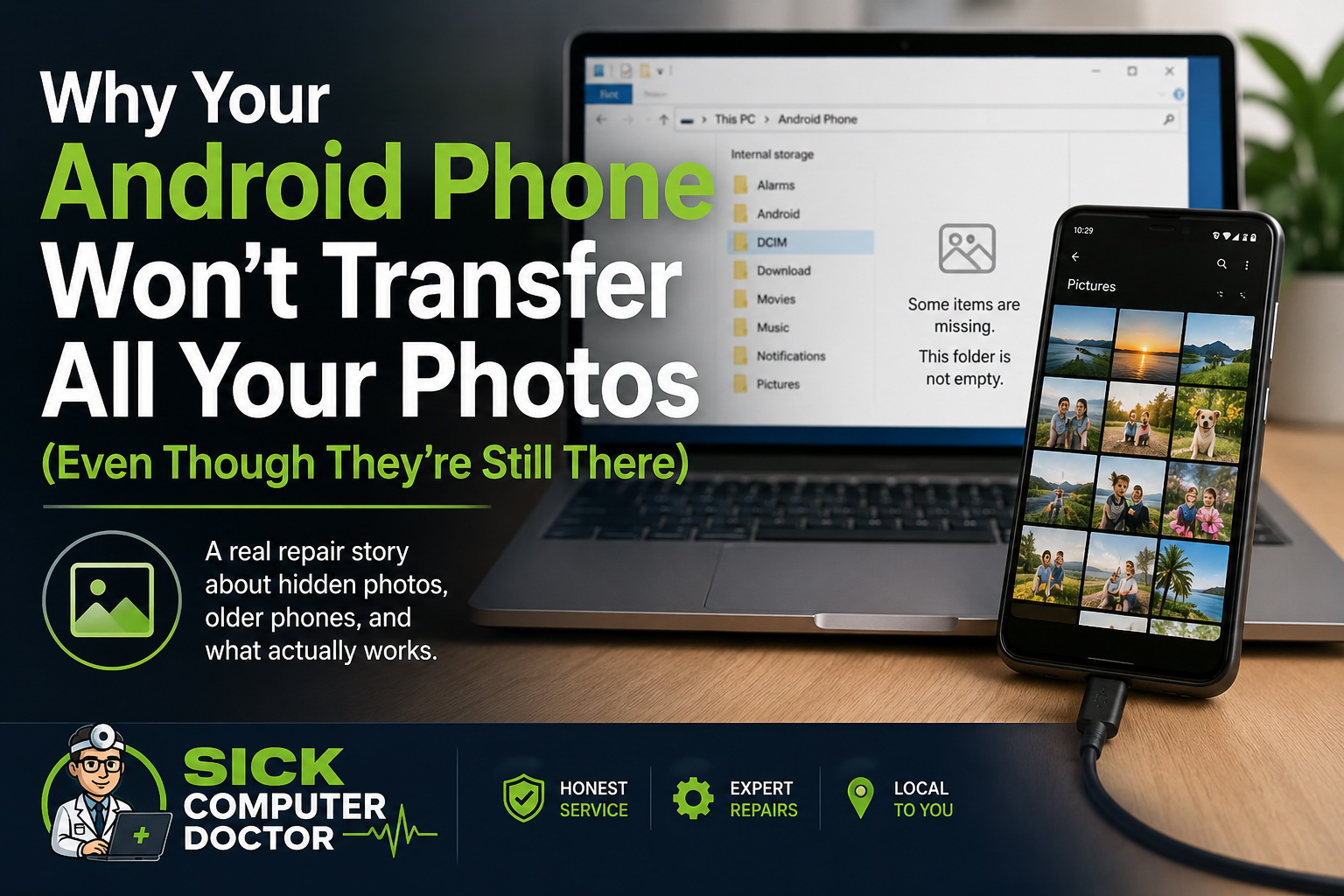
Have you ever plugged your Android phone into your computer to back up your pictures, only to discover that some of your most important photos simply weren’t there?
You search every folder.
You disconnect the phone and reconnect it.
You try another USB cable.
You even restart both the phone and the computer.
Nothing changes.
At that point, it’s easy to believe the worst—that your photos have somehow been lost forever.
Fortunately, that’s not always the case.
I recently worked on an older Android phone that contained years of irreplaceable family memories. The owner could still see every picture on the phone itself, but no matter what we tried, many of those same images refused to appear on the computer.
This wasn’t a case of deleted photos.
It wasn’t a failing memory card.
It wasn’t even a damaged phone.
Instead, it became a perfect example of why professional Computer Repair Services and experienced Data Recovery Services are about understanding how technology works—not just trying random fixes until something finally succeeds.
Every Normal Method Failed
Whenever I recover someone’s files, I always begin with the least invasive solution first. If a simple method works, there’s no reason to make the process more complicated than it needs to be.
Unfortunately, this phone wasn’t going to cooperate.
Because the device was several years old, it had gradually fallen behind modern technology.
Uploading everything to the cloud wasn’t an option because newer security requirements prevented the phone from connecting properly.
Sharing photos through messaging apps failed.
Sending them through email failed.
Creating a new photo album and trying to copy the pictures didn’t work.
Even using Android’s built-in sharing options produced inconsistent results.
Finally, we connected the phone to a computer using a USB cable.
Windows immediately recognized the device.
The storage appeared exactly as expected.
The familiar camera folders were there.
At first glance, everything looked perfectly normal.
Until we noticed that dozens of photographs we knew existed simply weren’t being displayed.
Windows wasn’t showing them.
Imagine opening your filing cabinet at home and discovering several folders had disappeared.
Would you immediately assume someone stole them?
Probably not.
You’d likely assume they were somewhere else.
That’s exactly how I approached this situation.
If Windows Can’t See Them, Are They Really Gone?
One of the biggest misconceptions I hear is:
“If Windows doesn’t show the files, they must not exist anymore.”
That’s simply not true.
When most Android phones are connected to a computer, Windows doesn’t receive unrestricted access to the phone’s storage.
Instead, Android presents Windows with a limited view of the device using what’s known as Media Transfer Protocol (MTP).
Most of the time, that’s perfectly adequate.
You plug in the phone, browse your photos, copy what you need, and move on.
But older Android devices don’t always behave the way newer phones do.
Certain folders may never be presented through the USB connection.
Some applications store files in locations Windows never sees.
Other files may exist perfectly on the device while remaining invisible through a standard file transfer.
That’s exactly what happened here.
The customer wasn’t imagining things.
The phone wasn’t lying.
The pictures still existed.
Windows simply wasn’t being shown where they were.
This is one of those situations where experience matters. Knowing when a problem doesn’t make sense is often just as important as knowing how to solve it.
Looking Beyond What Windows Explorer Could See
At this point, trying another USB cable wasn’t going to solve anything.
Neither was restarting the phone.
Nor reinstalling drivers.
The problem wasn’t that Windows had failed to recognize the phone.
The problem was that Windows was only seeing part of what actually existed on the device.
Instead of relying on the standard USB connection, I decided to communicate directly with Android itself.
Using the Android Debug Bridge (ADB), I was able to interact with the phone at a much deeper level than Windows Explorer allows.
Rather than relying on Android’s limited MTP interface, I could inspect the underlying file structure and search locations that normal file transfers never expose.
Almost immediately, files began appearing that had never shown up during any of the previous transfer attempts.
There they were.
The missing photographs.
Exactly where they had been all along.
They had never been deleted.
They had never been overwritten.
Windows simply wasn’t being shown where to find them.
Once those files were located, I was able to safely recover photographs that every conventional transfer method had completely missed.
That doesn’t mean ADB is the solution to every photo recovery problem.
Far from it.
It simply happened to be the right tool for this particular situation.
Professional Data Recovery Services aren’t about using one magic program.
They’re about knowing which tools are appropriate for each unique problem.
Why Older Android Phones Can Create Unexpected Problems
Technology evolves quickly.
Unfortunately, older devices don’t always evolve with it.
As Android phones age, manufacturers eventually stop providing software updates. Applications become outdated, security standards change, and services that once worked perfectly begin to lose compatibility with modern systems.
That’s exactly what happened in this case.
The phone itself still worked.
The photos were still there.
The owner could open them and view them without any problem.
The challenge wasn’t accessing the pictures on the phone—it was getting those pictures off the phone.
Several methods that would normally be reliable simply weren’t available anymore because the software had become too old to communicate with today’s services.
That doesn’t necessarily mean the device has failed.
It simply means the recovery process may require a different approach than it would on a newer phone.
This is one of the reasons I always recommend backing up important photos before an older phone begins showing its age. Waiting until something stops working often makes the recovery process much more complicated than it needs to be.
Every Recovery Is Different
One mistake I see people make is searching for a single answer online.
They’ll type something like:
“How do I recover my Android photos?”
Unfortunately, there isn’t one universal solution.
Some phones have failing storage.
Some have damaged operating systems.
Others have corrupted memory cards.
Sometimes the files have actually been deleted.
Other times, like this repair, the files are still safely stored on the device—they’re simply inaccessible through normal methods.
That’s why blindly downloading recovery software can sometimes make matters worse.
If the wrong tool writes new information to the phone’s storage, it may reduce the chances of recovering files that were previously intact.
Professional Data Recovery Services begin with understanding why the data isn’t accessible before attempting to recover anything.
Diagnosis always comes before repair.
Experience Often Solves What Software Can’t
People sometimes ask what software I use to recover files.
The honest answer surprises them.
Many times, the software isn’t the most important part.
Experience is.
Software doesn’t recognize when something about a problem doesn’t make sense.
Experience does.
In this case, the customer could still see every missing photo on the phone.
That immediately suggested the files hadn’t been lost.
The challenge became figuring out why Windows couldn’t access them.
Instead of assuming the photos were gone, I kept asking a simple question:
“If the phone can still display the pictures, where are they?”
That question completely changed the direction of the investigation.
Instead of looking for deleted files, I started looking for files that existed but weren’t being presented through the standard transfer interface.
That small shift in thinking ultimately led to recovering photographs that every conventional method had failed to find.
Professional Computer Repair Services are rarely about guessing.
They’re about following the evidence until the real answer becomes clear.
Don’t Assume Your Memories Are Lost
When people lose access to family photographs, the emotional impact is often far greater than the value of the phone itself.
Phones can be replaced.
Memories can’t.
If your Android phone refuses to transfer all of your photos, don’t automatically assume those pictures are gone forever.
There may be a perfectly reasonable explanation.
The important thing is avoiding decisions that could make the situation worse.
Continuing to experiment with random recovery programs, repeatedly resetting the device, or making unnecessary changes can sometimes complicate an otherwise recoverable situation.
Sometimes the safest decision is simply to stop, preserve the current state of the phone, and have the problem evaluated before trying anything else.
That gives you the best opportunity to recover what’s truly important.
Need Help Recovering Photos From an Older Android Phone?
Every recovery story is different.
Sometimes the solution is simple.
Sometimes it requires specialized tools.
Sometimes the answer isn’t what anyone expected.
In this case, the photos had been on the phone the entire time.
The challenge wasn’t recovering deleted files.
The challenge was finding files that Windows couldn’t see.
If you’re struggling with an older Android phone that won’t transfer pictures, cloud backups no longer work, or you’ve run out of ideas, don’t give up too quickly.
A proper diagnosis can often uncover recovery options that aren’t immediately obvious.
At Sick Computer Doctor, I focus on finding the actual cause of the problem before recommending a solution. Whether you’re dealing with missing photos, file recovery, aging devices, or other technology frustrations, my goal is always the same: recover as much as possible while protecting your valuable data.
If you’re looking for experienced Computer Repair in Palm Harbor, Computer Repair in Dunedin, Computer Repair in Clearwater, Computer Repair in Oldsmar, Computer Repair in Tarpon Springs, or anywhere throughout northern Pinellas County, I’d be happy to help.
Sometimes the photos really are gone.
But sometimes…
They’re simply waiting for someone who knows where to look.
Leave a Reply