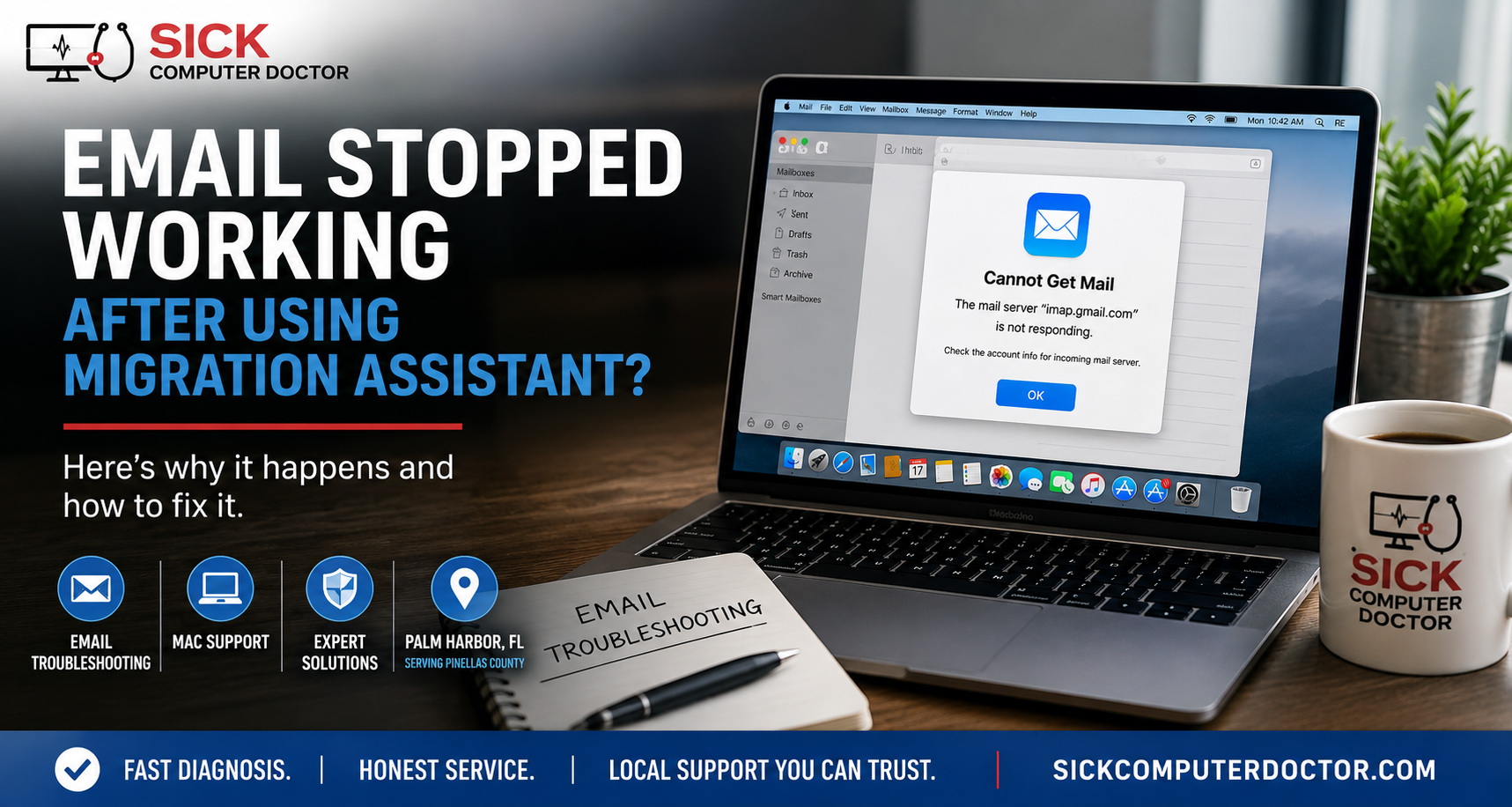
One of the more common questions I receive from Mac users is, “Why did my email stop working after I used Apple’s Migration Assistant?”
It’s easy to assume that Migration Assistant caused the problem. After all, everything was working on the old Mac, you transferred your data to a new computer, and suddenly Apple Mail won’t send or receive messages.
In reality, Migration Assistant may not be the only culprit.
What it usually does is copy your existing email settings to the new computer. If those settings rely on older authentication methods, outdated passwords, or software that’s no longer compatible with your email provider’s current security requirements, the migration is often the first time those issues become apparent.
If you’re experiencing this problem and need computer repair in Palm Harbor, FL, understanding what’s happening can save you a lot of frustration—and potentially prevent the loss of important email.
What Migration Assistant Actually Does
Apple’s Migration Assistant is designed to move your user account, applications, documents, settings, and many system preferences from one Mac to another. Sometimes, it does an excellent job.
However, it doesn’t “fix” existing configurations. It simply copies them.
If your previous Mac had an email account configured years ago using older authentication methods or outdated credentials, those same settings are transferred to the new computer.
Sometimes they’ll continue working without issue. Other times, modern email security rejects them.
That can make it look like Migration Assistant broke your email when it really just revealed an underlying compatibility problem.
Why This Happens So Often
Email providers have dramatically improved their security over the past several years.
Services such as Gmail, Google Workspace, Microsoft 365, Yahoo, and others have moved away from older authentication methods in favor of more secure sign-in technologies.
Many people continue using the same email account for years without making changes. As long as the existing authentication token remains valid, everything appears normal.
When you migrate to another computer, however, Apple Mail often has to establish a completely new connection with the email server. That’s when older settings may no longer be accepted.
Two-Factor Authentication Can Complicate Things
Another issue I frequently encounter involves two-factor authentication (2FA).
By default, Google enables 2FA on your email account. Older versions of Apple Mail may not support modern authentication methods and require a work around. Instead of using your normal password, they may require an application-specific password generated by the email provider.
From the user’s perspective, nothing makes sense.
“The password is correct.”
“I can log in through the website.”
“So why won’t Apple Mail connect?”
In many cases, the password isn’t actually wrong. The email client simply isn’t using the authentication method the provider now requires.
Older Versions of MacOS Can Create Additional Challenges
This issue becomes even more common on older versions of macOS.
Many people continue using older Macs because the hardware still works perfectly. Unfortunately, software support doesn’t last forever.
App providers may stop providing software for machines running older operating systems (OS). As email providers improve their security, older versions of Apple Mail sometimes loses compatibility with newer authentication standards.
That doesn’t necessarily mean you need a new computer.
Often, the account can be reconfigured using updated settings or an application-specific password, allowing the email client to function normally again. Or by installing a better email client that supports both the older OS, and updated security requirements.
Before Making Changes, Verify the Email Account
One of the first things I recommend is verifying that the email account itself is still working.
Instead of immediately deleting the account from Apple Mail, try signing in directly through your provider’s website using Safari or another web browser.
If you can successfully access your mailbox online, that’s good news.
It usually means your email account is perfectly healthy, and the issue is limited to how Apple Mail is connecting to the server.
That information can save a tremendous amount of unnecessary troubleshooting.
Don’t Delete the Account
One mistake I see people make is removing the email account from Apple Mail as soon as it stops working.
Sometimes that’s the correct solution.
Other times, it creates more work than necessary.
Depending on how the account was originally configured, deleting it could remove locally stored messages or erase account settings that could have been repaired much more easily.
Before making major changes, it’s worth determining whether the issue involves authentication, server settings, cached credentials, or compatibility.
Professional Troubleshooting Can Save Hours
Problems like these usually aren’t hardware failures.
They’re far more likely to involve:
- Modern authentication requirements
- Two-factor authentication
- Application-specific passwords
- Outdated Apple Mail compatibility
- Incorrect incoming or outgoing mail server settings
- Cached credentials that no longer work
- Security changes implemented by the email provider
An experienced technician can identify which of these is causing the problem instead of relying on trial and error.
If you’re having trouble after upgrading your Mac or using Migration Assistant, our Mac computer repair services can help restore your email without risking unnecessary data loss.
Serving Palm Harbor and Northern Pinellas County
SickComputerDoctor.com provides professional Mac support, email troubleshooting, and computer repair throughout Palm Harbor, Largo, Dunedin, Clearwater, Tarpon Springs, Oldsmar, and surrounding Pinellas County.
Whether your email stopped working after using Migration Assistant, replacing your Mac, or restoring from a backup, the problem is often much simpler than it first appears.
Instead of assuming your email account is lost, let us determine whether the issue is related to authentication, security settings, or software compatibility.
If you need help, Contact SickComputerDoctor.com today to schedule service.
Leave a Reply