When most people experience a slow computer, they assume the problem is aging hardware, failing memory, malware, or a computer that simply needs to be replaced. Recently, I worked on a computer that appeared to have serious performance issues, but the actual cause turned out to be something far less obvious.
This real-world troubleshooting case demonstrates why proper diagnostics matter and why replacing hardware isn’t always the answer.
The Initial Complaint
The computer owner reported that Firefox was taking an unusually long time to load websites. The computer itself seemed responsive, manual command line tests weren’t delayed, but opening a browser and loading pages often resulted in delays that lasted several seconds before anything happened.
At first glance, this sounded like a typical slow computer issue. Many users assume a sluggish browser means they need a new computer, additional memory, or even a complete operating system reinstall.
However, proper troubleshooting begins by identifying the actual source of the slowdown before making assumptions.
Investigating Memory Usage
One of the next areas checked was memory usage. Not enough memory can make programs freeze, websites load slowly, and the system rely too heavily on virtual memory.
Task Manager showed that Firefox was using a noticeable amount of memory. Multiple browser processes and extensions were active with a single window and single tab open. However, the system still had enough available resources, and there was no clear sign that physical memory was the root cause. It was just basically annoying to have to wait after initial boot to begin to use the internet.
That is why proper computer diagnostics matter. A computer can appear slow even when the memory is not actually the problem.
Because memory appeared healthy overall, the investigation moved on to other possibilities.
Testing Browser Performance
The next step was to isolate Firefox itself to check for memory leaks.
A new browser profile was created and tested. Firefox launched much faster using the clean profile, which suggested the issue was not related to Windows, hardware, storage, or the network connection.
Additional testing included browser Troubleshoot Mode, extension isolation, profile testing, startup performance analysis, and network verification.
When Firefox was started in Troubleshoot Mode, performance immediately improved.
That result pointed directly toward a browser configuration issue instead of a failing computer.
Ruling Out Other Possibilities
While identifying the final cause, several other possibilities were checked.
Potential causes included DNS delays, network latency, browser profile corruption, excessive memory usage, malware activity, and background software conflicts.
Each possibility was tested and eliminated. This is important because many computer problems have symptoms that look like hardware failure, even when the root cause is software-related.
That is also why virus and malware removal should be based on evidence instead of assumptions. Not every slow computer is infected, but malware should still be ruled out during proper troubleshooting.
The Actual Cause
After testing individual browser extensions, the source of the problem was identified.
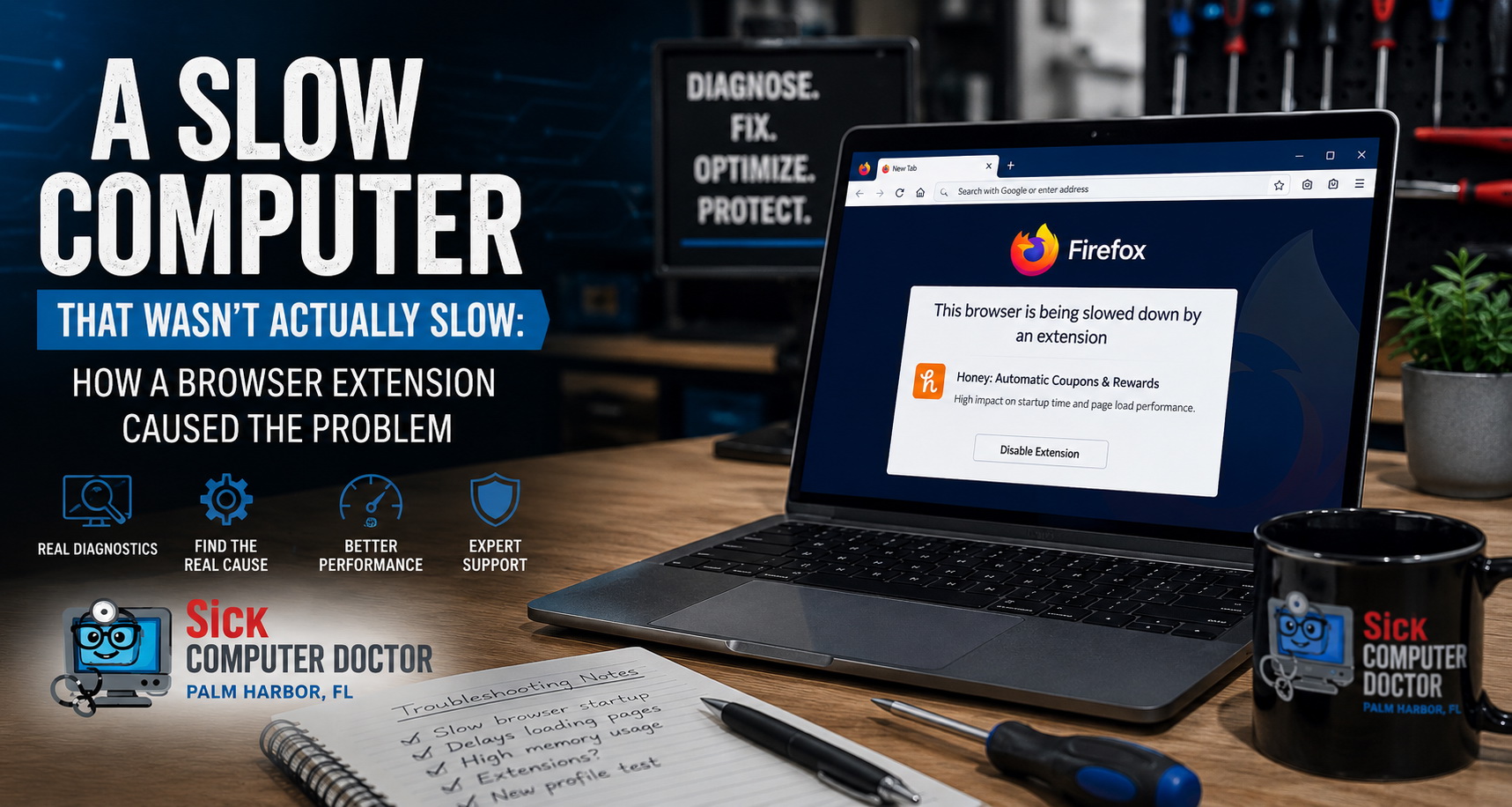
A browser extension (Honey) had been re-enabled and was causing Firefox to experience significant startup delays. Once the extension was disabled, Firefox returned to normal performance.
Pages that previously took several seconds to begin loading opened almost immediately.
The computer itself was never actually slow. The operating system was healthy. The hardware was functioning properly. The memory was sufficient.
The browser extension was responsible for the entire issue.
Without proper computer repair troubleshooting, many people would have assumed they needed expensive repairs or a replacement computer.
Why Professional Diagnostics Matter
This case is a reminder that symptoms and causes are often very different things.
A slow browser does not always mean a slow computer. A sluggish application does not automatically mean failing hardware. A performance problem does not always mean the device needs to be replaced.
Professional diagnostics focus on identifying the root cause before recommending repairs.
Sometimes the solution involves replacing hardware. Sometimes malware removal is required. Sometimes the issue is a simple software configuration problem.
The key is knowing the difference before spending money on the wrong solution.
Computer Repair and Diagnostics in Palm Harbor
If your computer feels slow, freezes unexpectedly, or simply is not performing the way it should, professional diagnostics can often identify the cause quickly and accurately.
At SickComputerDoctor.com, we provide computer repair in Palm Harbor, troubleshooting, malware removal, performance optimization, and system diagnostics throughout Palm Harbor and the surrounding Northern Pinellas County area.
Before spending money on a replacement computer, it may be worth finding out what is actually causing the problem.
Services We Offer
SickComputerDoctor.com provides the following professional solutions throughout Northern Pinellas County:
Leave a Reply